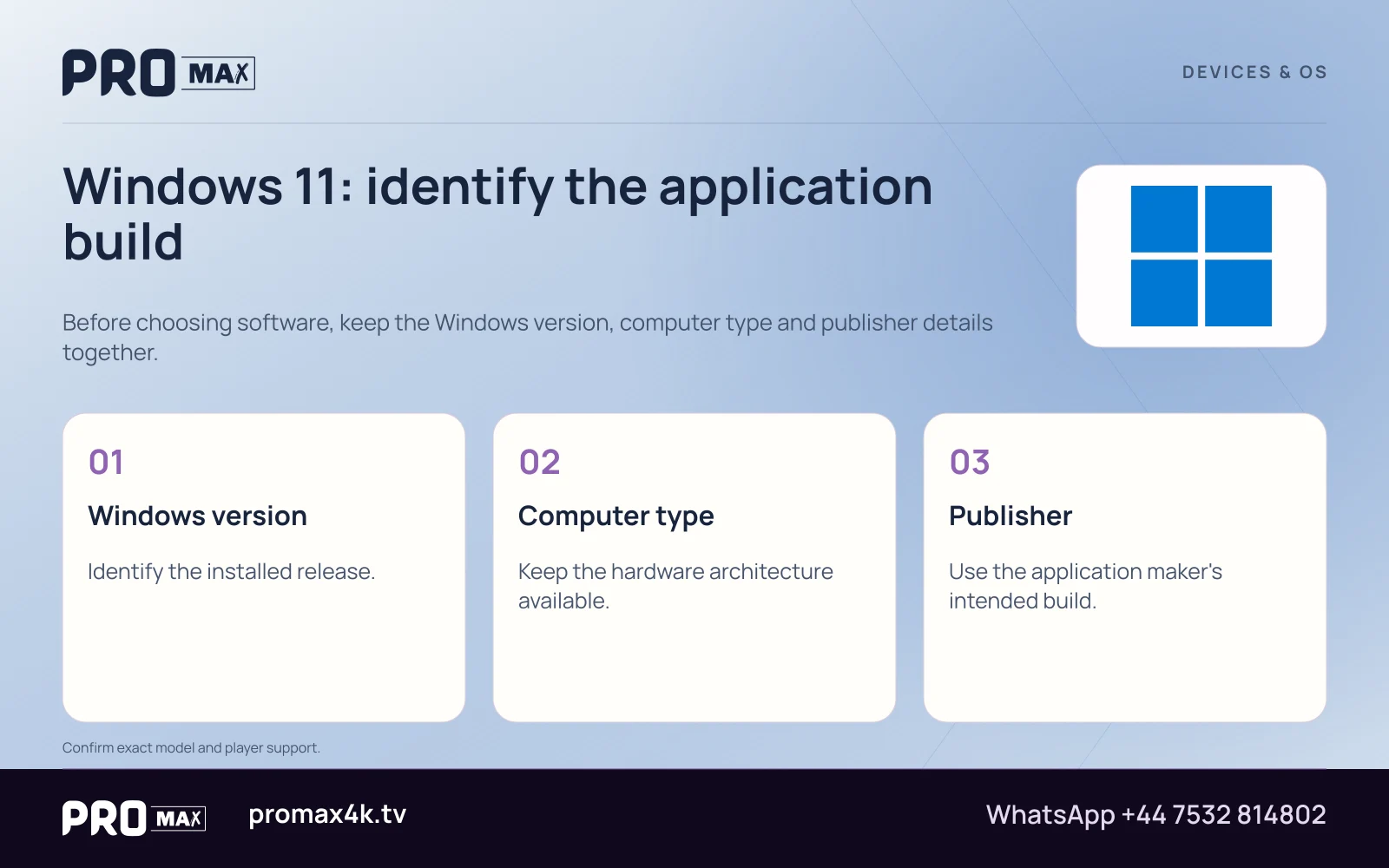
A Surface logo or the Windows 11 name does not identify which player installer fits a computer. Microsoft distinguishes Arm-based Windows hardware from other architectures, and publishers may offer native Arm64 builds alongside x64 versions. Establish the machine’s architecture before deciding that a downloaded application is incompatible.
Read the machine information first
Microsoft directs users to Settings → System → About for device and Windows details. Record the processor information and operating-system version from the PC that will run the player. A household can have several Windows devices with different architectures even when their desktop screens look almost identical.
Keep the architecture label separate from the amount of memory or the display resolution. Those are useful specifications for other questions, but they do not turn an x64 package into an Arm-native build. The installer choice begins with what the application publisher actually supplies.
Prefer a matching native build when offered
Microsoft documents that native Arm64 applications use the Arm platform directly, while many x86 or x64 applications can run through Windows emulation. That is not a promise that every player or component works through emulation. Check the publisher’s supported platforms and choose its appropriate native option where available.
VideoLAN, for example, lists a Windows Arm64 download separately from its other Windows options. Use that as a package-selection example rather than assuming every IPTV player offers the same set. An Android Arm APK is still an Android package, not a Windows Arm64 installer.
Keep a useful compatibility result
After installation, open the application before entering source details. Record whether installation fails, launch fails or only one playback task fails. These stages isolate the question better than repeatedly switching between several architectures and changing the account at the same time.
If the publisher offers no supported route for the computer, retain that result instead of declaring universal Windows compatibility. A working operating system and a familiar player name are not sufficient evidence of a successful ProMax installation. Use the exact app, version and hardware information when requesting the next supported step.
A practical sequence
- Open System → About and record the PC architecture and Windows version.
- Compare the publisher’s Windows package options.
- Use a matching native build when offered; verify any emulation expectation separately.
- Test installation and launch before diagnosing account or playback input.