Some Fire TV remotes have customisable buttons, while others have fixed branded app shortcuts. Check the exact remote model before expecting a button to launch your preferred player. Use the device’s supported customisation controls rather than assuming every labelled shortcut can be reassigned. Check whether customisation is an advertised feature of that exact remote rather than inferring it from the presence of shortcut buttons. A printed service logo and a user-assignable button are different hardware and software features.
Identify the remote version
Remote features vary independently of the television or streaming stick. A guide for a premium remote may not apply to the standard remote supplied with another model. Find the remote model in its documentation or device accessory information and compare it with Amazon's current feature description. Two remotes used with the same stick can have different buttons and supported actions. Re-pairing a standard remote does not add hardware features offered only by another model, and player licence status does not determine whether a button can be reassigned.
Use the supported assignment
If the remote offers a customisable button, follow Amazon’s controls to choose an allowed action or app. Test it after assignment without changing the player’s account. Choose the intended installed application through the supported assignment interface, then test the button from the home screen and during ordinary viewing. If the app is absent from the allowed choices, consult the remote's documented limitations rather than installing an unrelated remapping utility as the first step. A successful assignment launches the app; it does not configure its provider source automatically.
Keep a normal launch route
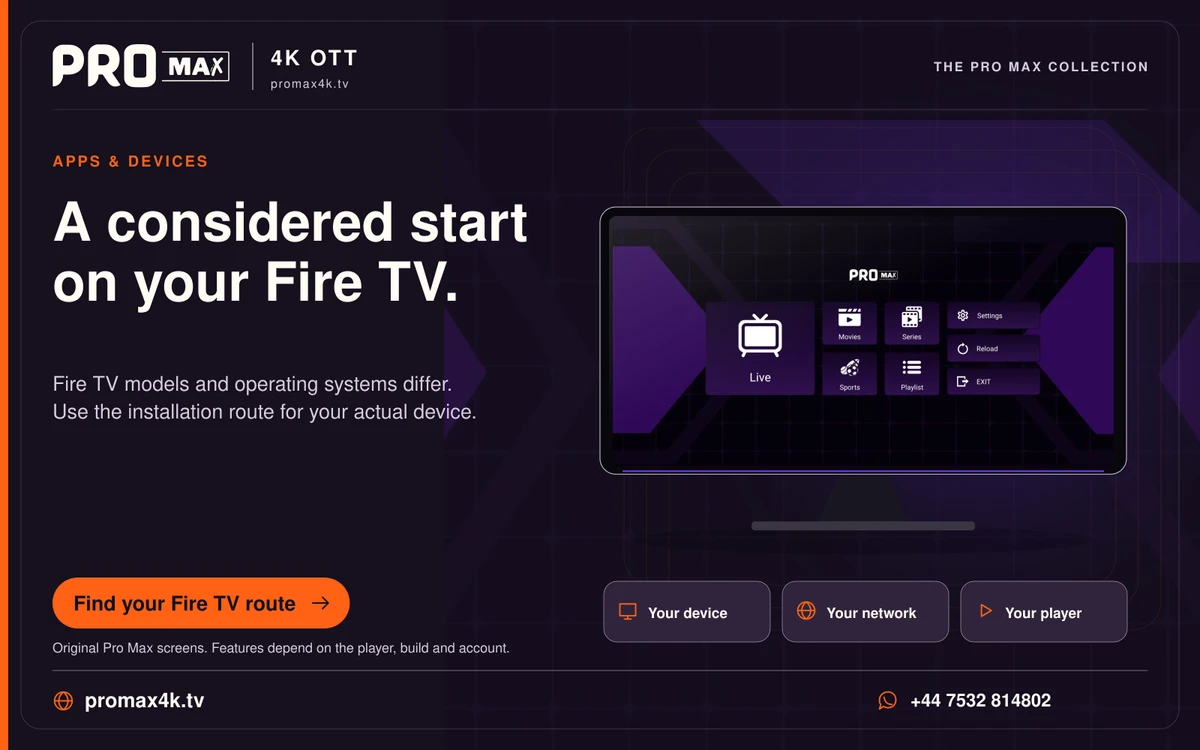
Home-screen app ordering remains useful when a remote lacks customisation or is replaced. Explain that route to other household members so access does not depend on one special button. Keep the configured player visible in the normal apps list and explain which HDMI input and household profile to use. That route remains useful if the special button loses its assignment or another remote is substituted. After an update, verify supported button settings before resetting the player, since the application's account configuration is separate from how the remote asks the launcher to open it.
A practical sequence
0 of 3 steps completed on this page.
An example to work through
A remote with fixed streaming-service logos should not be assumed to offer the same app assignment feature as a remote with explicitly customisable buttons. Compare its exact model with the supported feature list. If reassignment is unavailable, move the installed player forward in the home-screen apps row so the household still has a simple supported launch route.
Questions about this topic
Can every branded app button be reassigned normally?
No. Check the features of the actual remote.
Does a shortcut create a new provider login?
No. It only opens an application or supported action.