A television brand does not identify its app platform. Different models from one manufacturer may run Google TV, Android TV, Fire TV or another system. Open the television’s About or Device information screen and record its model and software platform before choosing an installation guide. An Android APK cannot be installed directly into every smart TV. Check which device is drawing the Settings screen: the television and an HDMI box can each have their own platform. That distinction determines the store, installer and support instructions you should use.
Read the model information
The label on the back of the television identifies the hardware, while the settings screen identifies its software. Keep both. A search for only the screen size or marketing name can lead to instructions for a different model year. Before copying a model number, return to the television home screen or deliberately select the box's HDMI input. Otherwise you may record the box's software as the television's firmware. Include the manufacturer, complete model suffix and software version in a private setup note so regional or model-year differences remain visible when comparing support instructions.
Match the installer to the platform
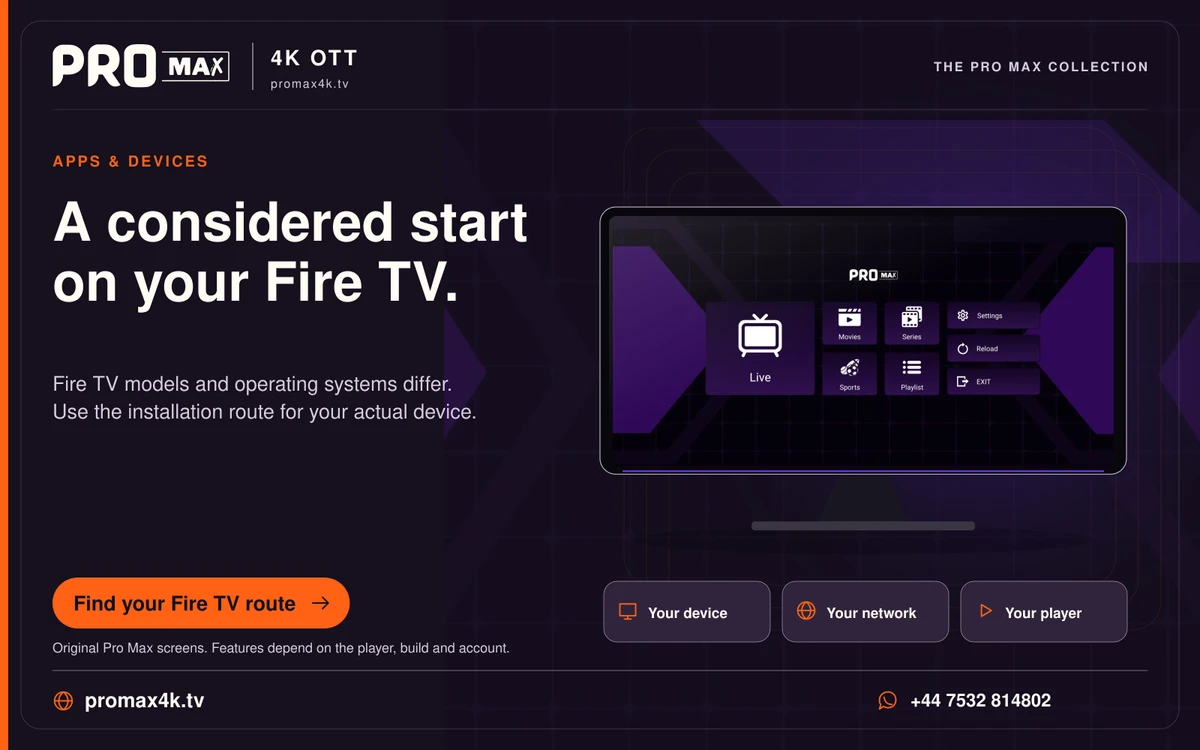
Google Play, Amazon Appstore, Samsung’s store and LG’s store distribute different application builds. A USB stick containing an APK does not make that package compatible with a television running a different operating system. Choose the distribution route after identifying the system, then verify the publisher in that store. Android TV and Google TV can accept appropriate Android packages, while webOS or another non-Android platform needs its own supported application. A download button labelled Smart TV does not establish which operating system the file targets or whether your model is supported.
Use an external player when appropriate
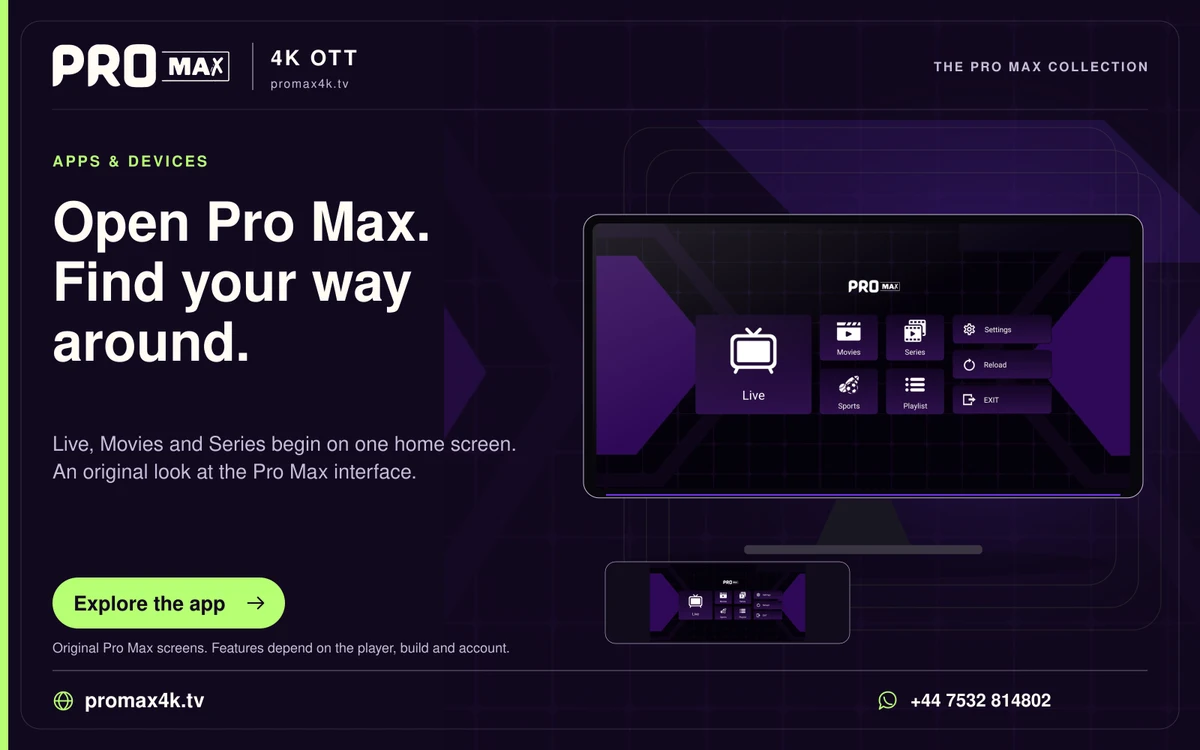
A compatible streaming box connected through HDMI runs its own apps. The television can then serve as the display. Choose the box on its actual operating system and supported apps rather than assuming every product labelled 4K has the same software. Check the proposed box's app availability before purchase, including support for remote navigation and the display connection you will use. Connect it to an HDMI input, select that input and install there. If you later return to the television's home screen, you are looking at a different launcher; the box's app has not necessarily disappeared.
A practical sequence
0 of 3 steps completed on this page.
An example to work through
A household with a Google TV in the bedroom and a webOS television downstairs needs two different app-installation routes, even when both screens are sold by familiar TV manufacturers. Check each device's About screen before selecting an installer. If downstairs uses an HDMI Android box, install the Android player on that box and select its input when viewing.
Questions about this topic
Can a TV firmware update turn webOS into Android TV?
A normal firmware update updates the existing platform; it does not replace webOS with Android TV.
Does an HDMI box change the television’s own app store?
No. Apps installed on the box run on that box and appear through its HDMI input.