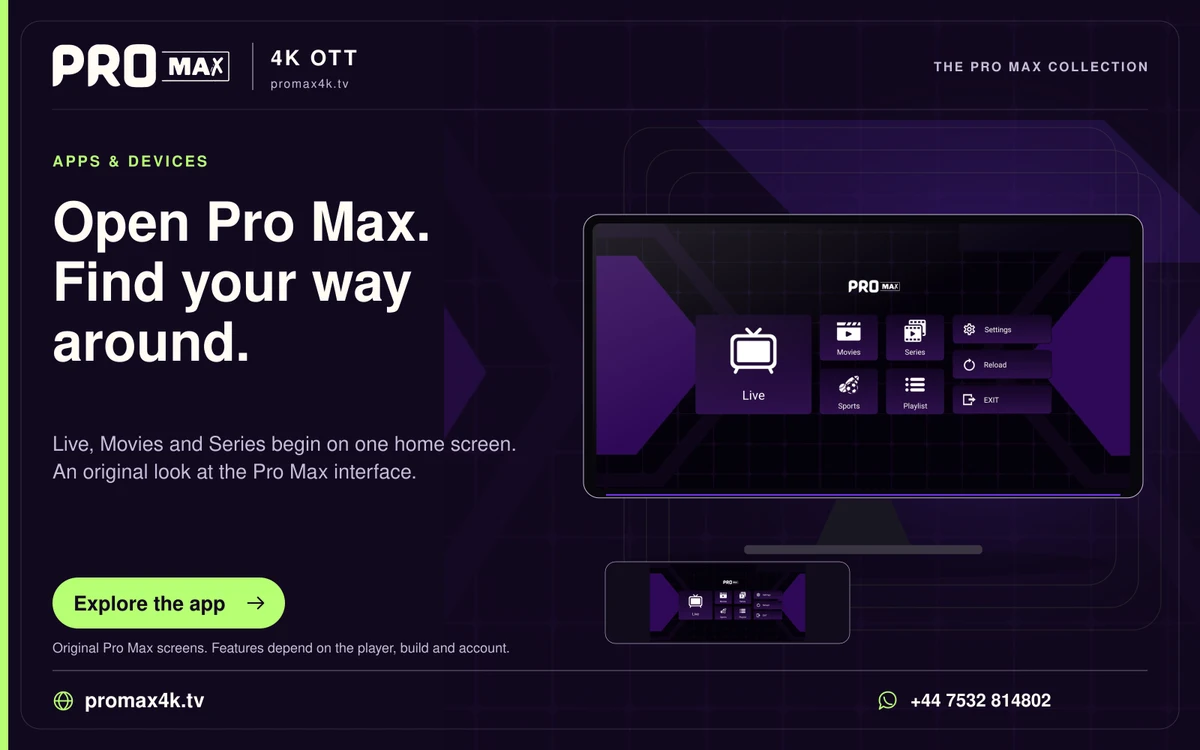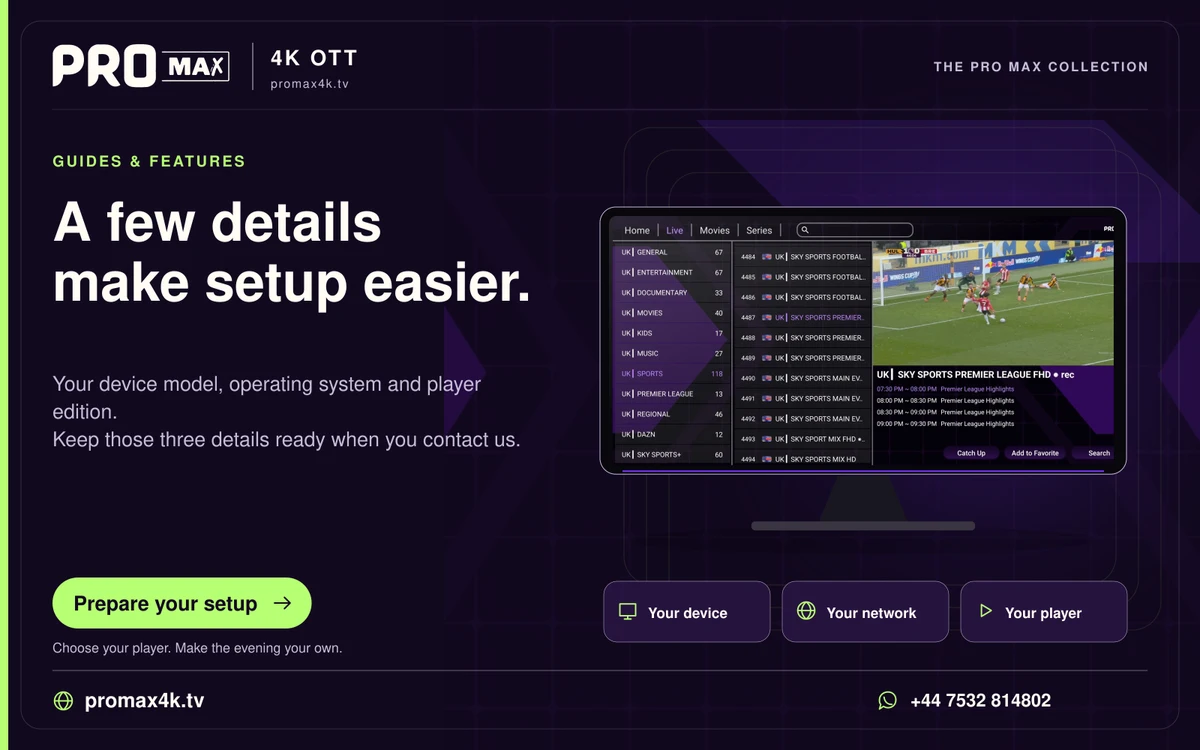
Google TV’s store shows applications offered for the television platform, account and region. Finding an Android phone listing on the web does not establish that the publisher supports a remote-controlled TV build. Search from the TV itself and compare the developer name with the publisher’s website before attempting another installation route. A missing search result should prompt an edition and compatibility check. It does not establish a faulty subscription, and repeatedly changing provider credentials cannot make an unsupported application appear in the store.
A shared Android name is not a shared interface
A phone application may depend on touch controls, portrait orientation or features absent from a television. Installing it successfully would not prove that its menus can be operated with the TV remote. A television build normally provides a landscape interface, directional focus and actions reachable with Select and Back. A phone build can install yet leave an essential login button unreachable. Check the publisher's device requirements and screenshots for a TV interface before treating sideloading as an equivalent substitute for the missing store result.
Read the current listing
Publishers can change supported devices or withdraw a release. The current store result is more useful than an old tutorial screenshot. Check whether the publisher provides a separate TV edition rather than downloading a similarly named application. Compare the exact application name and developer rather than choosing the first familiar logo. Also check the active household profile: a restricted profile can hide an otherwise available app. If the publisher lists no TV release, retain that finding; an unofficial mirror cannot establish current support simply by making a phone package downloadable.
Choose a workable alternative
If a supported TV edition is unavailable, use a player that the publisher offers for your actual device, or ask support about a compatible external device. Avoid buying a player licence before checking that the required build is available. Before committing to an alternative, confirm that it accepts the configuration format your provider issued. Being available on the TV does not mean it supports every portal, playlist or login scheme. Establish installation and navigation first, then add your authorised source. This avoids paying for software whose account form cannot accept the details you actually possess.
A practical sequence
0 of 3 steps completed on this page.
An example to work through
An application installed on an Android phone may not be listed on the living-room television because its developer distributes only a touch-screen edition. First compare its official device requirements with the TV listing. If there is no supported television build, choose a compatible player before entering the provider account anywhere.
Questions about this topic
Does “Android” in a description guarantee Android TV support?
No. Android phone and Android TV support must be checked separately.
Will sideloading add remote-control support?
No. Sideloading changes the installation route, not the application’s interface.