Pro Max 4K OTT

Audio Language and Subtitle Controls

A player can select only audio and subtitle tracks supplied for the chosen item. An app preference does not create a missing language track or subtitle file.

promax4k.tv+44 7532 814802
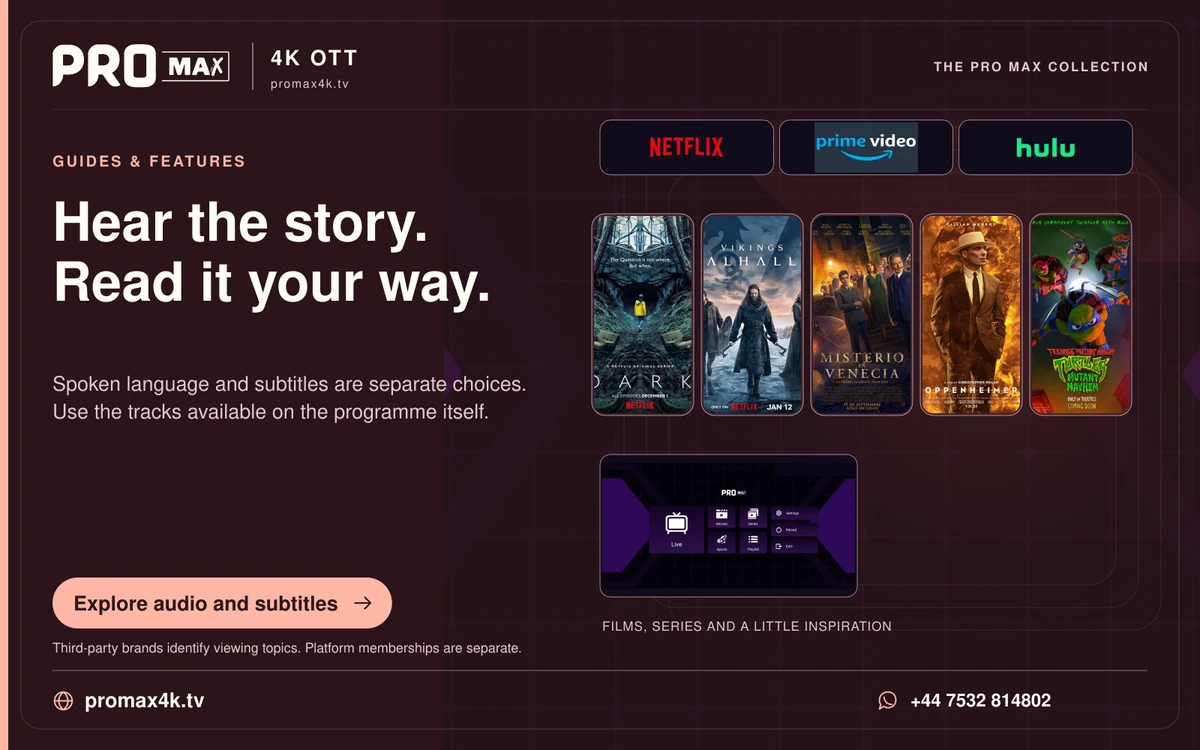
Film and series artwork beside Pro Max guidance on choosing audio and subtitles.
Spoken language and subtitles are separate choices. Use the tracks available on the programme itself.
A practical guide

The details you need.

A player can select only audio and subtitle tracks supplied for the chosen item. An app preference does not create a missing language track or subtitle file.

Choose an audio track

Open the playback audio menu and select an available track. If a track has no sound, compare another track and another item, then check the TV or sound-system output.

When subtitles are not visible

  1. Check whether the item actually supplies a subtitle track.
  2. Enable that track in the player.
  3. Check subtitle visibility settings such as size and colour where available.
  4. Compare a second item before treating the player as the cause.

Describe the missing option

Report the title, available language options, selected track and player version. A missing option across one item may be a source limitation; a missing control across all items may be a player feature or licence limitation.

Related guidance

Keep the next step simple.

Choose the right device guide

Find the operating-system route for your screen.

Explore →

Read the technical detail

Clear definitions of player, media and network terms.

Explore →

Get account-specific help

Speak to support with your device and player details.

Explore →
Your evening starts here

Get the player ready. We’ll help with the rest.

Install the app for your screen, then WhatsApp the Pro Max team for a one-day free trial. Already watching? Go straight to the viewer help desk.

WhatsApp