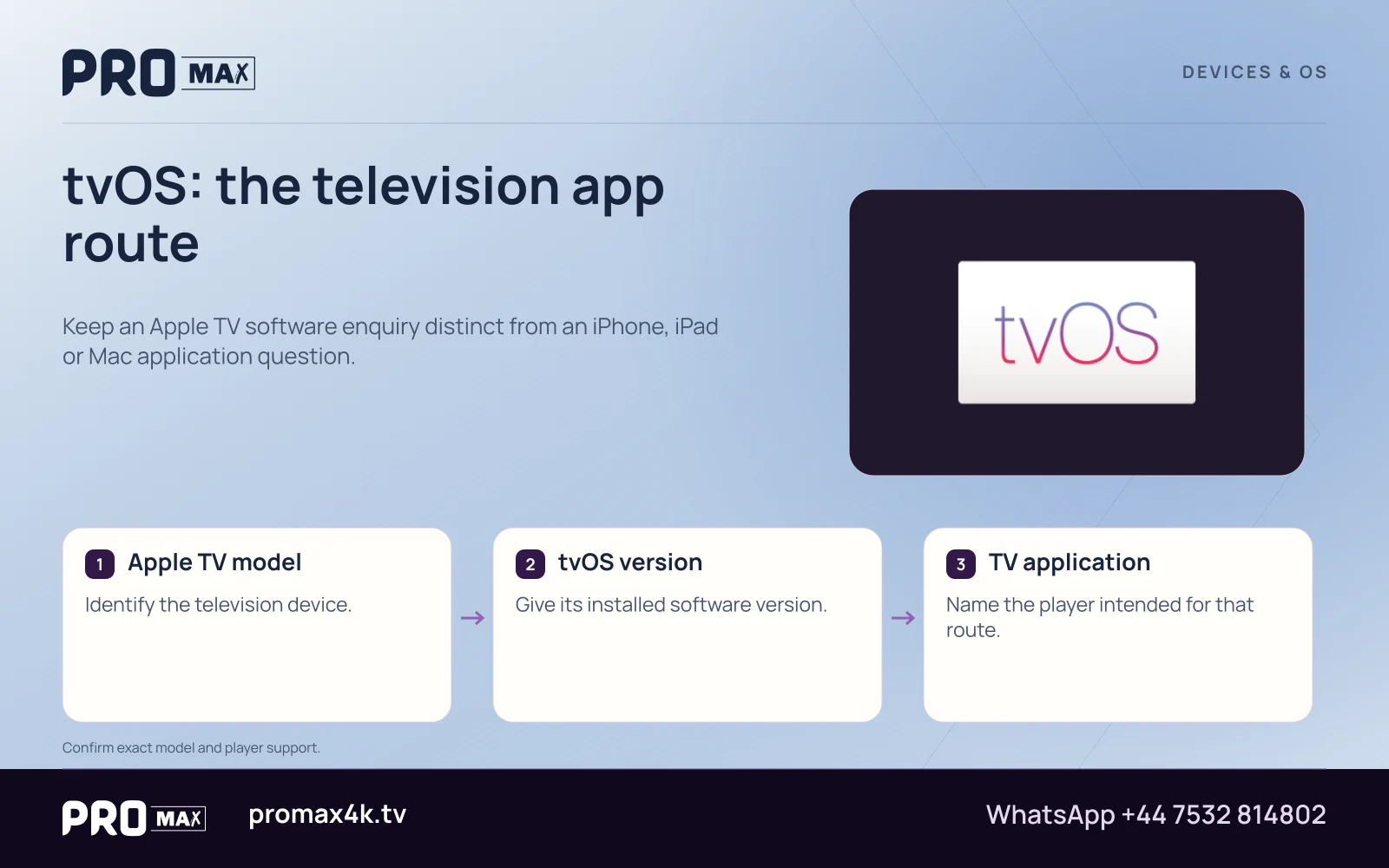
A player that has been removed from the Apple TV home screen may be available through the App Store’s Purchased area. Apple documents a redownload route for Apple TV HD and 4K. Use that account-linked route before buying a similarly named application or assuming that service access must be purchased again.
Find the app under the correct Apple Account
Open App Store on Apple TV and choose Purchased. Apple’s redownload guidance includes a Not on This TV view for applications previously obtained with the relevant account. If Family Sharing applies, it also provides a route to a family member’s purchases. Account identity matters before interpreting an empty list.
A player licence and the service details stored inside a player remain separate. Restoring the app purchase can make the application available again without restoring every local setting or establishing that an old service account is active.
Choose the genuine application again
Select the intended app from the account’s list and use the redownload control. Compare the application name and publisher with the previous setup record if there are several similar entries. The goal is to restore the same software, not to choose the first television player suggested by a broad store search.
A purchase history is not a guarantee that every old application remains available forever. If the app is absent from the relevant account or no longer offered on that hardware, retain that result for Apple or the publisher rather than repeatedly changing the service login.
Inspect the returned setup before editing it
After the app has downloaded, open it and examine the state it presents. A previously deleted application may need a fresh local configuration. An offloaded application can have different data-retention expectations. Keep the installation result and configuration result as two separate observations.
If the store redownload succeeds but the player still cannot connect, continue with the account method and error shown inside that player. Do not troubleshoot the App Store after it has already completed its job. This staged approach makes a support report more useful and avoids paying for a replacement app unnecessarily.
A practical sequence
- Open App Store and choose Purchased.
- Check the relevant Apple Account or applicable Family Sharing purchases.
- Find the intended app under Not on This TV and redownload it.
- Open the restored player and inspect its local setup before changing service details.